
Getting Help
There are several ways to get help on any xCAD topic.
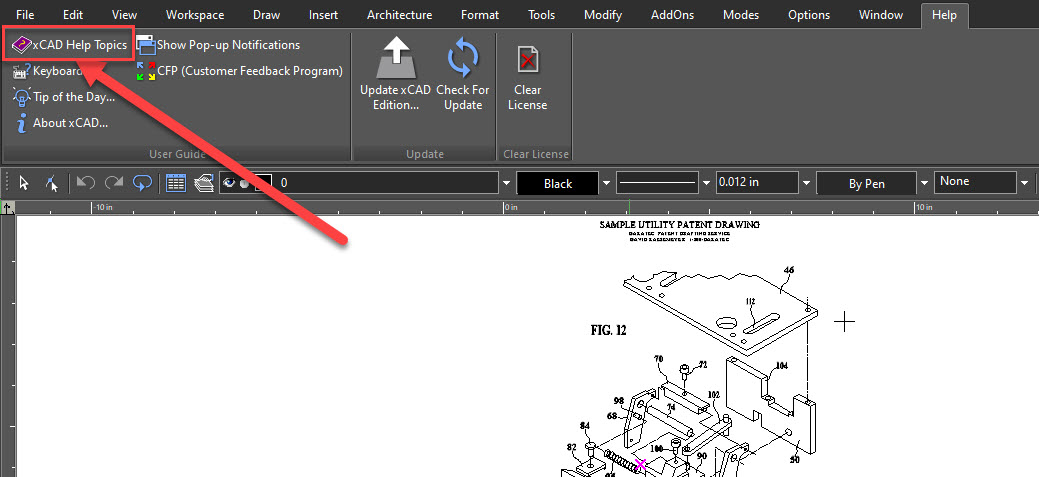
Location in Menu: Help > xCAD Help Topics
Online Help
The Help menu provides access to the online help, which basically contains the same content as this book. The help is also context-sensitive, which can be accessed in several ways:
Click the Help button (question mark icon), then click on the tool button, menu item, tab, or palette in question.
Place the cursor over a button, menu item, or palette, or highlight a menu item, and press F1.
Press F1 while using a tool or window.
Press the Help button on a window.
To see a tool tip for an icon, hold the cursor over the button for a second or two. The tool tip will appear, showing the name of the tool.
Tip:* Look in the Help menu to see a list of keyboard shortcuts.Look in the Help menu for the Tip of the Day* for helpful hints.
Technical Support
Go to the support section of xcad3d.com for detailed support options. Technical support is available by emailing at support@xcad3d.com. Technical Support will work closely with you to solve any problems related to our software. Please give our support technicians as much information as possible. Remember that they are not in front of your computer and that they need your help to diagnose the problem. On occasion, a problem can be traced to hardware, or to another software application. Our technician will supply as much support as possible in these cases, but they are not authorized to support products manufactured or published by another company. You might find that e-mail is a more convenient way to get technical support. If you do send e-mail, provide as much information as you can about your system and about the problem.
Technical Support CheckList
You may already have the information you are looking for. Before emailing, check this manual thoroughly. To receive the fastest response to your technical questions, please be in front of your computer with xCAD running, and be prepared to provide the following information before you call or send e-mail:
The type of computer and Windows version you are using.
The name, version number, and other information about your specific version of the product. (To find this information, select Help / About xCAD from the xCAD menu.)
The exact sequence of events that created the problem. Verify that you can reproduce the problem by following the same series of steps.
The exact wording of any error messages.
Steps you've taken to find the answer to your question, including resources used.
The results of any steps you have undertaken to resolve the problem.

Contact
Reach out for support or inquiries.
SUPPORT: support@xcad3d.com
© 2026. xCAD Technologies. All rights reserved.
SALES: sales@xcad3d.com
Products
Policies
Address: 142-7075 Place Robert-Joncas, Montréal QC H4M 2Z2, Canada


Founded in 2013, xCAD delivers powerful yet affordable CAD and home design software, and has been a pioneer AEC (Architecture, Engineering, and Construction) industry for over a decade.