
Starting xCAD
If you accepted the default installation settings, xCAD can be accessed via the Windows Start/Programs menu.
Click the Start button on the Windows taskbar.
Select Programs/xCAD, and select the version you have installed.
You can also start xCAD by double-clicking the desktop icon. You will see a xCAD launcher to choose the interface.
Start Page
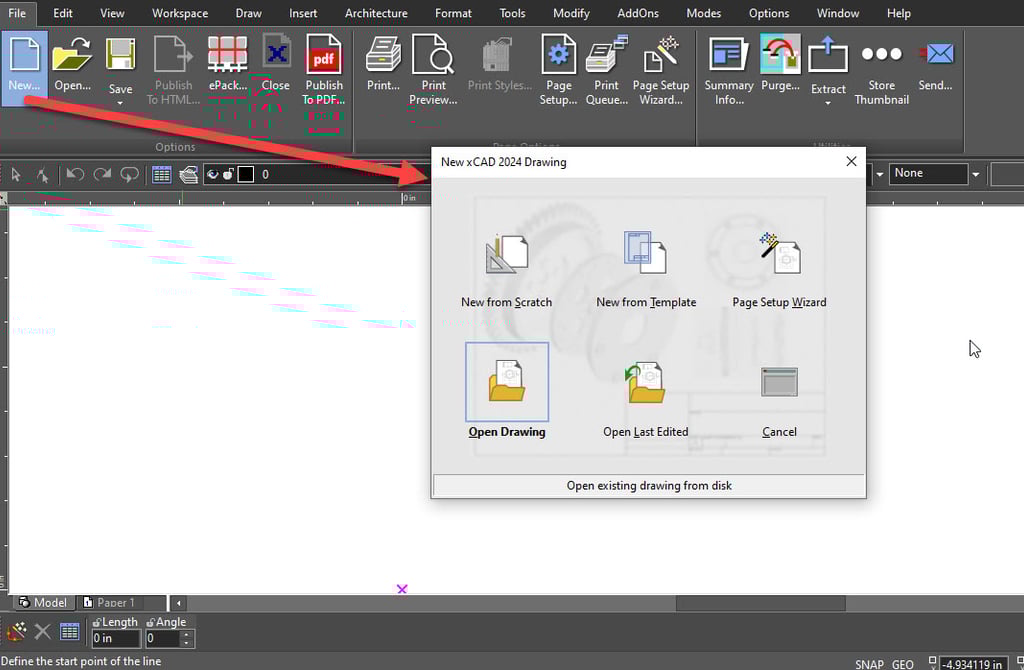
xCAD launches its Start Page when all modules have been loaded. The Start Page features options as below:
New Drawing: This gives three options to the user;
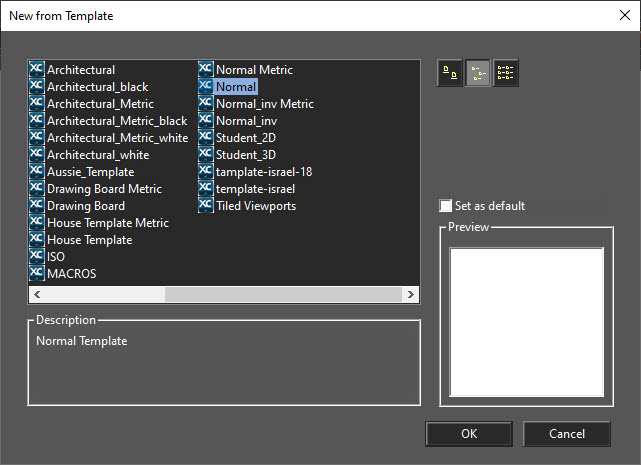
New from Template,
Page Setup Wizard,
and New.
New from Template: Enables you to select a predefined template, which has size, units, and layout defined.
Page Setup Wizard: Opens the step-by-step guide for setting page size and scale See Page Setup Wizard.
New: Creates a new blank drawing with the default settings.
Open Files..: This dropdown features 2 options as Last Edited, and Open.
Open Drawing: Opens an existing drawing. Browse to the desired folder to locate the file. For acceptable file types,
Last Edited: Opens the last file you worked on.
Workspace: This section features selection of workspaces among the available ones as well as selection Ribbon or Toolbars.
You can view a History of drawings previously opened.
Click on "File" from the menu bar.
Select "Open" from the drop-down menu.
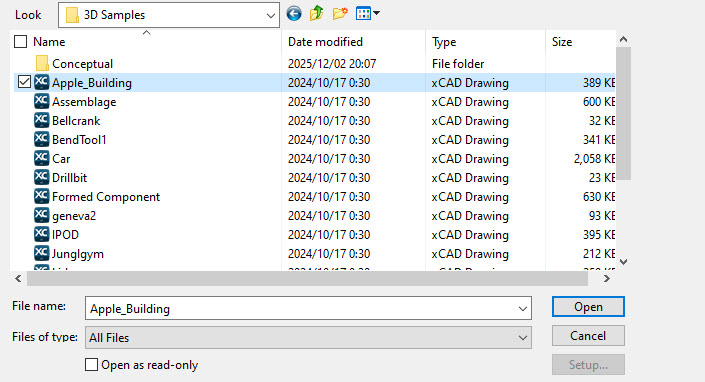
A dialogue box appears which displays the history of drawings.
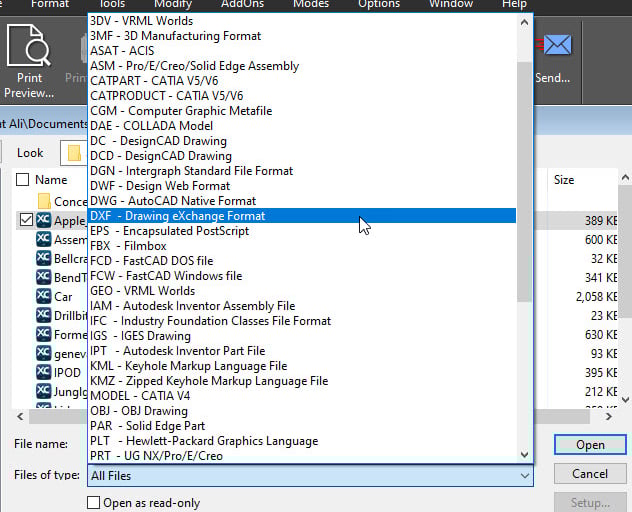
You can also browse to folders containing drawings you want to open or open a Template by clicking on the drop-down menu at the top left corner of the dialogue box and selecting the desired template. You can also use this window to import files of other types by changing the option in "File of type" and selecting the file type you want to open from a drop-down list. Opening New File: If you want to create a new drawing, click New.
You can also close this window by clicking Cancel. You can then select File/New within xCAD to create a new drawing.
Page Setup Wizard
A step-by-step guide to setting page size and drawing scale.
Note: This is not exactly the same as the Page Setup used for printing, but any relevant parameters you set in this wizard will appear in the Page Setup.
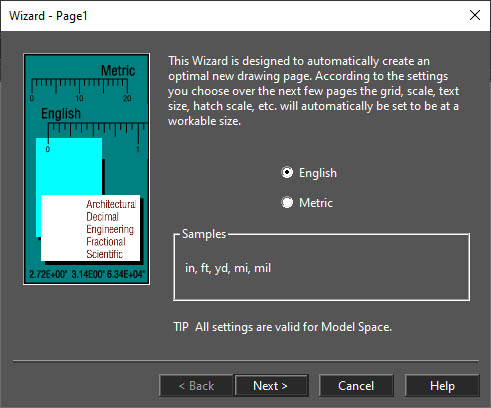
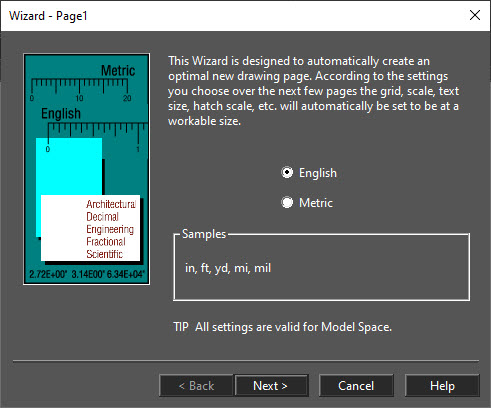
If you selected Page Setup Wizard in the New xCAD Drawing window, the wizard opens automatically. You can also access it via File/Page Setup Wizard. In the first page you can choose between English and Metric units.
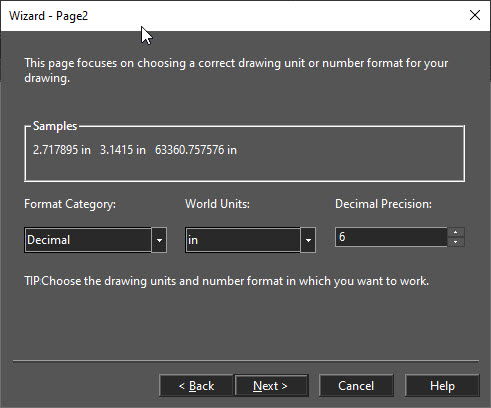
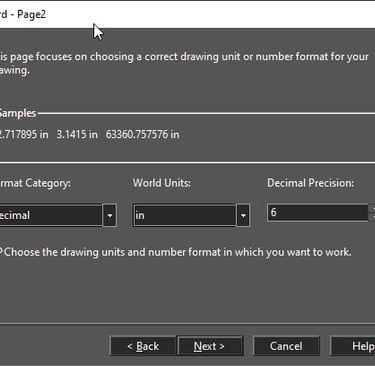
On the second page, you can set the type of unit you want to use - architectural (1'-3"), decimal (3.75 ft.), scientific, etc. You can also specify the main unit (inches, feet, yards) and the precision of the units.
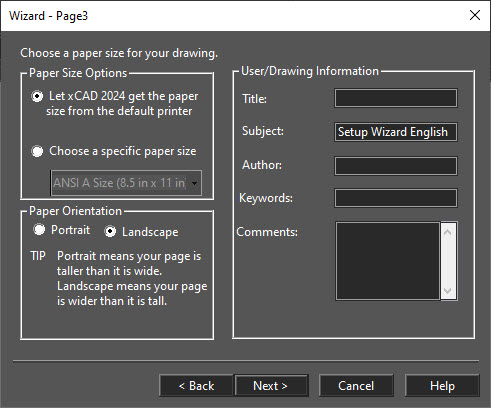
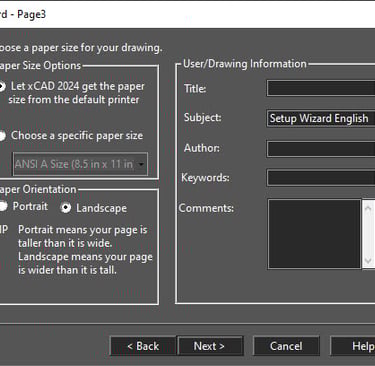
The third page contains options for paper size and orientation - these are used when printing. You can also enter drawing information such as title, author, and comments.
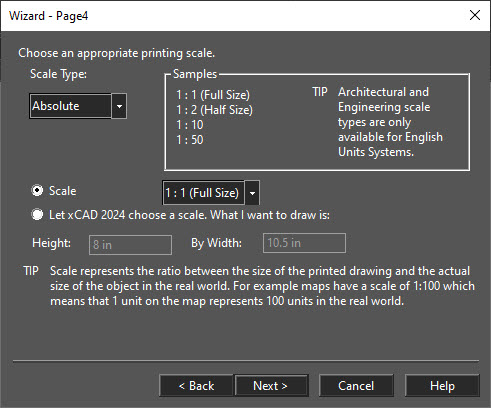
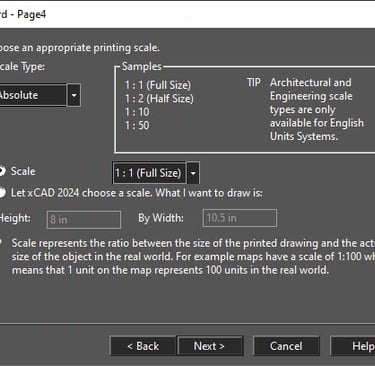
The fourth page enables you to set the printing scale. This is the size of the objects when printed, relative to their actual size specified in the drawing.
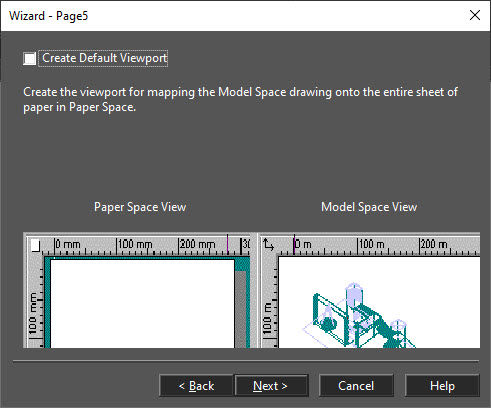
The fifth page enables you to create a default viewport for mapping the Model Space drawings onto the paper sheet as defined in Paper Space. When printing the default viewport from Paper Space, you get a hard copy of the Plan view of the current drawing because the Plan view is the default view for Model Space.
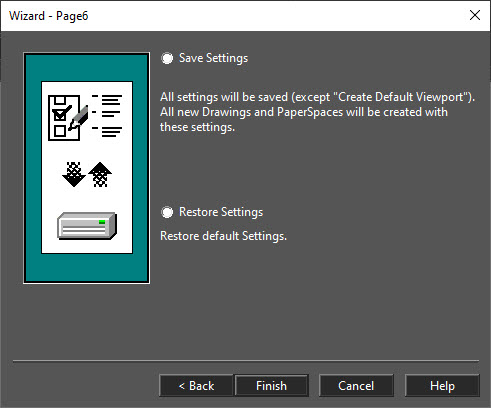
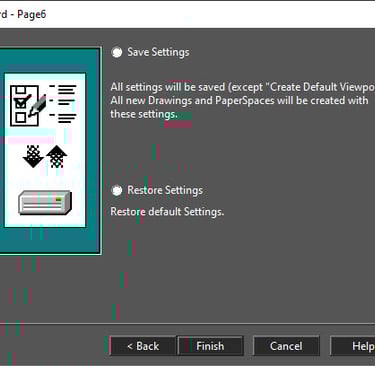
The sixth and final page enables you to save the settings for future drawing or to restore the initial settings. Settings can be edited in the xCAD Explorer Palette .

Contact
Reach out for support or inquiries.
SUPPORT: support@xcad3d.com
© 2026. xCAD Technologies. All rights reserved.
SALES: sales@xcad3d.com
Products
Policies
Address: 142-7075 Place Robert-Joncas, Montréal QC H4M 2Z2, Canada


Founded in 2013, xCAD delivers powerful yet affordable CAD and home design software, and has been a pioneer AEC (Architecture, Engineering, and Construction) industry for over a decade.